Winlink
Winlink opens after launching Start Modems->Vara from 73LinuxWinlink is also launched from the terminal with the command
patEasy way to setup is to install 73Linux
Winlink is a global radio email system that uses radio frequencies to send and receive messages. It is commonly used by amateur radio operators, emergency responders, and maritime users to communicate when traditional internet access is unavailable.
Verify
When you get your Winlink acct and post a GPS location using your toughbook, you can test with your browser by going to https://aprs.fi APRS and entering your callsign.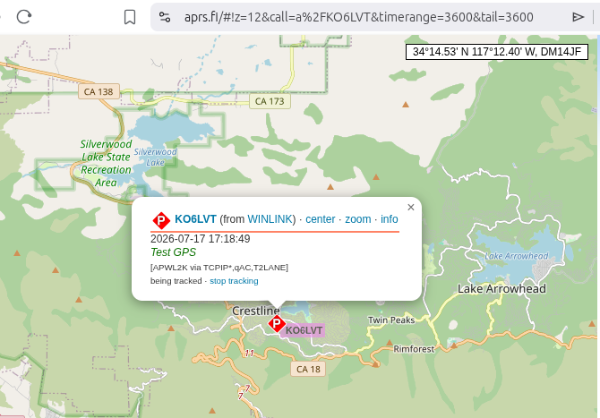
Cron
To configure automated tasks or connections in the Pat Winlink client on Linux, you do not use the standard system Linux crontab. Instead, you must use Pat's built-in, cron-like automated scheduling system embedded directly into its config.json file.When Pat runs as a background service (e.g., via systemctl), it reads this internal scheduler to execute commands like checking mail or changing radio frequencies automatically.Step 1: Open the Pat Configuration File
Open your terminal and use the native command line to access the configuration editor:pat configureStep 2
Scroll down through the JSON object until you locate the "schedule": {} configuration property.Replace the empty braces {} with your desired cron schedules and Pat commands using standard cron syntax (Minute, Hour, Day of Month, Month, Day of Week):
    "schedule": {

    "*/15 * * * *": "connect telnet",

    "00 10 * * *": "freq ardop:7350.000",

    "00 22 * * *": "freq ardop:3602.000"

    },
Valid Internal Pat Commands for Scheduling:
- connect <transport> — Triggers a mail check/session over a specific protocol (e.g., connect telnet or connect ax25).
- freq <mode>:*lt;frequency> — Automatically changes your radio's QSY frequency via RigControl/Hamlib at designated times of day.
Step 3: Run Pat as a Continuous Daemon
For the internal schedule to execute automatically, Pat must stay running in the background. Enable and start the user-level systemd service:
  sudo systemctl enable pat@$USER

sudo systemctl start pat@$USER
To configure a template service to run at startup for a specific user on Linux Mint 22.3, do not use sudo if it is a user-level service.
sudo systemctl enable --now pat@$(whoami).service
At home ref(Requires Internet)
KM4ACKKM4ACK - Winlink Express
Pat download
Pat\Winlink Ref
Direwolf
Verify Direwolf is installed
|
Get Sound Card
|
Verify Config
|
Verify Direwolf runs OK
|
||
APRSPasscode generator | |
||
ax25
-
sudo apt install -y ax25-tools ax25-apps -
Ports
sudo nano /etc/ax25/axports - wl2k KO6LVT 1200 255 7 Winlink
-
whereis ardop*
flrig
Ctrl-Alt-T to open terminal
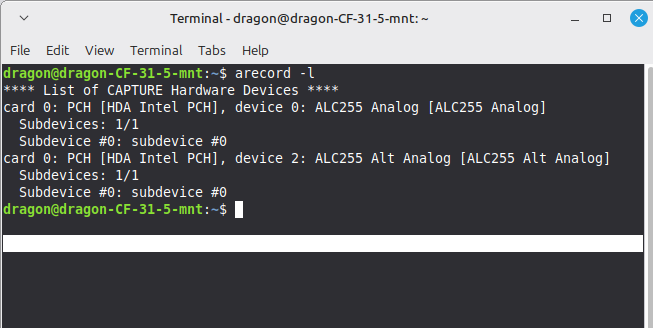
        arecord -l

        ls /dev/snd/by-id
Settings
USB audio codec (In settings)
Vara
SettingsUSB audio codec (In settings)
Pat
- /home/${user}/.config/pat
Ardop
Winlink ARDOP configuration involves setting up the ARDOP Virtual TNC for audio and the Radio Setup for CAT control and PTT. The process differs slightly depending on whether you use Winlink Express (Windows) or Pat(Linux/Windows), but the core components remain consistent(tr)uSDX
Setup
Getting started with Winlink on a (tr)uSDX transceiver requires setting up Winlink Express, configurAudio Levels: Adjust your computer's playback and recording sliders carefully; overdriving the (tr)uSDX audio input will distort the signal and cause splatter. ing a sound card or virtual audio path, and matching your CAT control settings to emulate a Kenwood rig.
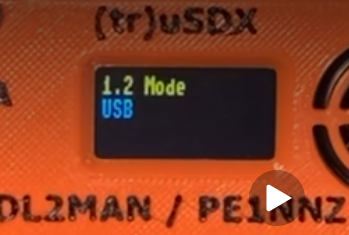 Mode: USB
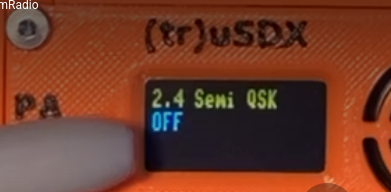 Semi QSK:Off
Set to 14.078.00
Winlink
- Session Type: Use a VARA HF or ARDOP session depending on your preferred sound card protocol.
- Radio Model: Select Kenwood TS-480 (or Kenwood Amateur USB) as the rig profile for CAT control.
- Baud Rate: Set serial speed to 115,200 bps on your assigned virtual COM port.
- PTT Control: Assign PTT via CAT or RTS depending on your specific audio interface (such as a Digirig or virtual sink).
- Audio Levels: Adjust your computer's playback and recording sliders carefully; overdriving the (tr)uSDX audio input will distort the signal and cause splatter.
Config
- /home/${user}/.config/pat
Update at least these four lines with your Winlink credentials and grid square
       "mycall": "YOUR_CALLSIGN",

         "secure_login_password": "YOUR_WINLINK_PASSWORD",

         "locator": "YOUR_6_DIGIT_GRID_SQUARE",

         "http_addr": "127.0.0.1:8080"
2 Meters
Prominent 2-Meter Gateways Near DM14if
- W6JBT-10 (VARA FM & Packet) – Located near San Bernardino / Redlands. Highly accessible
from Crestline’s south-facing slopes.
Frequencies to check: 145.050 MHz or 145.090 MHz -
K6AEM-10 / W6ARES-10 – Serving the broader San Bernardino County emergency communications
infrastructure.
Frequencies to check: 145.070 MHz -
N6EX-10 – A robust regional node frequently reachable from mountain elevations.
Frequencies to check: 145.010 MHz or 144.930 MHz
Winlink VHF operations typically utilize packet radio modes (1200 or 9600 baud) on standard
amateur VHF frequencies.
Common VHF frequencies for Winlink gateways in California and surrounding regions include:
Common VHF frequencies for Winlink gateways in California and surrounding regions include:
            144.93 MHz
            145.01 MHz
            145.03 MHz
            145.05 MHz
            145.07 MHz
            145.09 MHz
            145.53 MHz
Setting up Pat Winlink on 2-meter VHF using a Baofeng handheld radio requires a software TNC like Direwolf, an audio/PTT interface cable (such as a Digirig or SignaLink), and proper adjustment of your radio's audio levels.
Chirp
To program a Winlink 2M (VHF) gateway channel using CHIRP, you must configure the radio for simplex operation on the specific ARDOP or VARA FM frequencies used by local Winlink stations.According to budget setup guides, you should program at least two gateway channels into your radio to ensure connectivity if one station is unavailable.
Config steps
- Mode Selection: Set the channel mode to FM (for VARA FM) or Digital/Specific Mode depending on whether you are using standard FM audio or the DRA (Digital Radio Adapter) board which may require specific digital mode settings in CHIRP or via the radio's internal menu.
- Frequency: Enter the local Winlink 2M gateway frequency (commonly 147.555 MHz or 146.940 MHz in the US, but verify local lists).
- Tone/Privacy: Set CTCSS/DCS to None or the specific tone required by the local gateway; most Winlink simplex links do not use standard repeater tones.
- Radio Settings: It is recommended to turn off Dual Watch (often Menu item 10, labeled RDW) to simplify the display and prevent the radio from scanning away from the Winlink channel.
- Simplicity: Ensure the channel is set to Simplex (no repeater offset) as all Winlink 2M stations operate simplex.
For precise frequency and tone requirements, consult the local Winlink gateway channel list or use software like Pat Winlink to find active stations, as frequencies can vary by region.
Key Path Topography from DM14if
- South (180°): Cleanest path. Drops sharply down to San Bernardino and the I-10 corridor. Best for hitting valley backbones like W6JBT-10.
- West/Southwest (220°): Clears the ridge line toward Rancho Cucamonga and Ontario. Excellent secondary pathway.
- North/East (0° - 90°): High risk of terrain masking. Signals traveling in this direction hit higher mountain peaks (like Rimforest and Running Springs terrain blocks) before reaching any high-desert valleys.
Software Configuration Steps
- Direwolf: Configure your direwolf.conf file to recognize the sound card device and set the PTT channel correctly for 1200 baud AX.25 packet operation.
- AX.25 Port: Define your local AX.25 port settings to bind Direwolf's KISS TNC interface to Pat.
- Pat Setup: Edit the Pat configuration file (config.json) to include your amateur radio call sign and point the transport address to your local AX.25 interface.
Tuning and Operation Tips
- Audio Levels: Sound card packet radio is extremely sensitive to input volume. Adjust the volume knob on your Baofeng in very tiny increments if decoding fails.
- Squelch & Power: Turn the Baofeng squelch completely off (set to 0) and set transmit power to high when initiating sessions.
- Gateway Distance: Handheld radios have limited line-of-sight range; ensure a local 1200 baud VHF Winlink RMS gateway is within range or use an external roof-mounted antenna.